



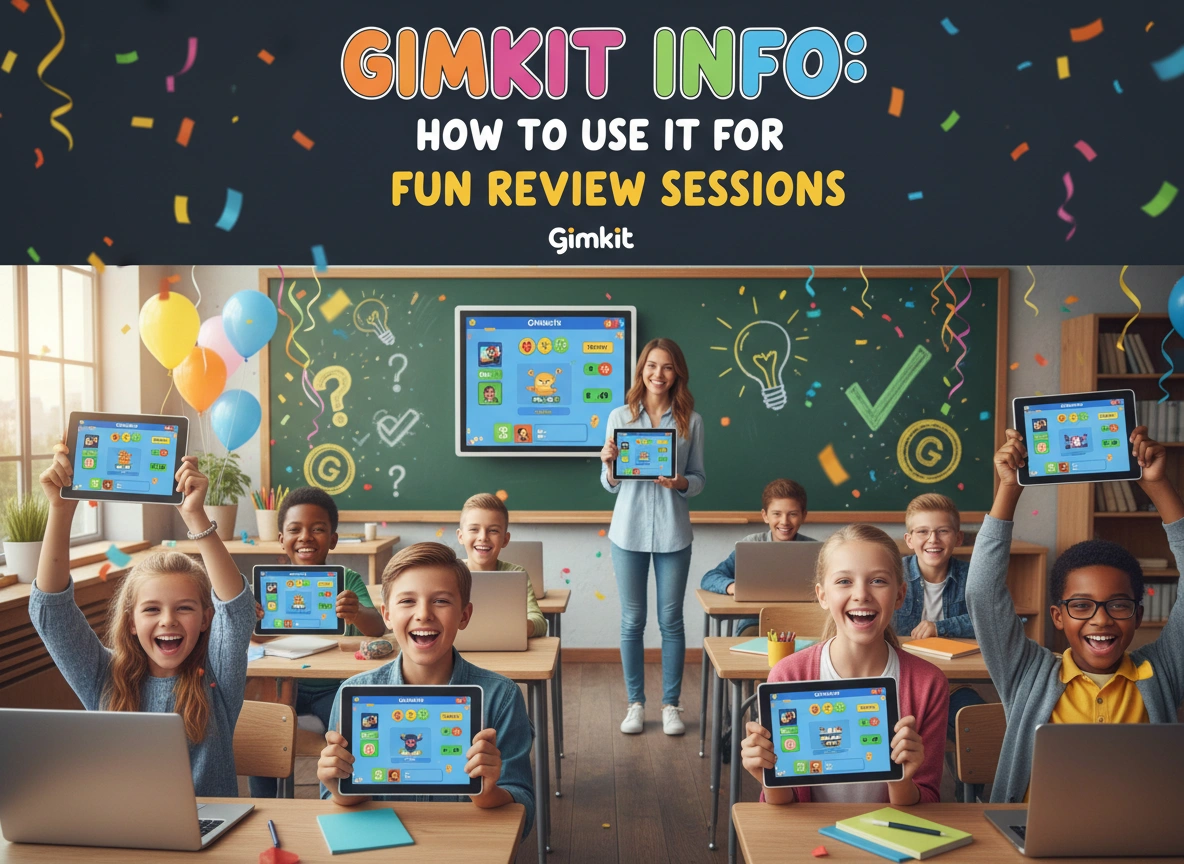
Engaging students during review sessions is a perennial challenge for educators. Traditional quizzes and flashcards often fail to capture attention, leading to disengaged learners and lackluster retention. Enter Gimkit, a game-show-style learning platform that transforms the review process into a high-stakes strategy game. Unlike standard trivia apps, Gimkit introduces an economy where students earn in-game currency for correct answers, allowing them to purchase power-ups and upgrades.
This article provides a comprehensive guide to Gimkit, exploring its core features, diverse game modes, and practical strategies for implementing it in your classroom. Whether you teach elementary math or high school history, you will discover how to turn mundane test prep into an event your students actually look forward to.
What is Gimkit?
Gimkit was created by a high school student, Josh Feinsilber, who wanted a classroom game that he would actually want to play. It functions similarly to platforms like Kahoot! or Quizizz but with a significant twist: strategy.
In a typical Gimkit session, students answer questions on their own devices at their own pace. There is no waiting for the whole class to finish a question before moving on. For every correct answer, students earn “cash.” They can then use this virtual money to buy upgrades (which increase the cash earned per question), insurance (which protects against penalties for wrong answers), and power-ups (which can help themselves or hinder other players).
This economic layer adds depth to the experience. It’s not just about knowing the answer; it’s about managing resources and making strategic decisions. A student who answers slowly but invests wisely can often outperform a student who answers quickly but fails to upgrade their earnings.
Key Features That Set Gimkit Apart
- Self-Paced Gameplay: Students answer questions as quickly or slowly as they need to. This reduces the anxiety of a ticking clock that everyone sees simultaneously.
- The In-Game Shop: The ability to buy upgrades keeps students engaged even if they aren’t at the top of the leaderboard immediately. They always have a short-term goal: earning enough for the next upgrade.
- Dynamic Game Modes: Gimkit isn’t just one game. It offers variety modes like “Floor is Lava,” “Trust No One” (an Among Us style game), and classic team modes.
- KitCollab: This feature allows students to contribute their own questions to the game, making them active participants in the review creation process.
Why Use Gimkit for Review Sessions?
The benefits of gamification in education are well-documented, but Gimkit addresses specific pain points related to review and retention.
Boosting Student Engagement through Agency
Traditional review games often reward only the fastest students. If a student falls behind early, they check out mentally. In Gimkit, the economy system allows for comebacks. A student can grind for cash, buy a multiplier, and suddenly shoot up the leaderboard. This possibility keeps every student engaged until the final second of the session.
Repetition Without Boredom
To master material, students need repetition. Gimkit naturally encourages this. Because the questions cycle through repeatedly until the game ends, students will see the same questions multiple times. If they get a question wrong, the correct answer is shown, and they will likely encounter that question again a few minutes later. This spaced repetition reinforces learning without feeling like rote memorization.
Data-Driven Insights for Teachers
After every game, Gimkit provides detailed reports. You can see which questions were missed most frequently, allowing you to identify specific gaps in understanding. You can also view individual student performance to see who might need extra help before the big test.
Exploring Gimkit Game Modes for Review
One of Gimkit’s strengths is its variety. Using different modes keeps the review sessions fresh throughout the semester.
Classic Mode
This is the standard “free for all.” Students compete individually to earn the most money by the end of the time limit. It is perfect for a quick, 10-minute warm-up or exit ticket.
Team Mode
Students work together in groups. Their earnings are pooled, and they must communicate to decide who buys which upgrades for the team. This fosters collaboration and communication skills alongside content review.
Trust No One
Inspired by the popular game Among Us, this mode assigns students roles: Crewmates or Impostors. Crewmates answer questions to run tests and identify the Impostors, while Impostors try to sabotage the mission without being caught. This mode is incredibly popular and adds a layer of social deduction to the review.
The Floor is Lava
This is a cooperative mode where the class must work together to keep their construction above the rising lava. Accuracy matters more than speed here, as wrong answers can penalize the whole group. It is excellent for building a sense of classroom community.
Fishtopia
In this mode, answering questions allows students to fish. They catch fish, sell them for money, and buy gear to catch better fish. It creates a relaxing yet engaging atmosphere, perfect for a Friday afternoon review.
How to Implement Gimkit Effectively
To get the most out of Gimkit, you need more than just a set of questions. Here are practical strategies for integrating it into your curriculum.
1. The Pre-Assessment Strategy
Don’t wait until the end of a unit to play. Use Gimkit at the start of a topic as a diagnostic tool. Run a short “Classic” mode game with questions covering the upcoming material. The results will give you an immediate baseline of student knowledge, helping you tailor your lesson plans.
2. Student-Generated Reviews with KitCollab
Instead of creating the quiz yourself, use the “KitCollab” feature.
- Step 1: Announce the topic (e.g., “The Water Cycle”).
- Step 2: Students submit one question each through their devices.
- Step 3: You approve or reject the questions in real-time.
- Step 4: The class plays the game using the questions they just created.
This forces students to think critically about the material to formulate good questions and incorrect answers (distractors).
3. Homework Assignments
Gimkit allows you to assign “Kits” as homework. Students can play at home at their own pace. You can set a target monetary goal (e.g., “Earn $1,000,000”) rather than a percentage grade. This encourages them to keep playing—and answering questions—until they reach the goal, ensuring plenty of repetition.
4. The “Boss Battle”
Challenge your students by joining the game yourself! Project your screen (hiding the answers, of course) and play against the class. Students love the opportunity to beat the teacher. You can even set a reward: if the class average is higher than your score, they earn a privilege, like 5 minutes of free time or no homework for the night.
Creating Your First Gimkit Set
Getting started is straightforward. Here is a quick workflow to get your first review session running in minutes.
- Create an Account: Sign up at gimkit.com. The free version offers substantial features, though a paid “Pro” version exists for unlimited edits and audio uploads.
- New Kit: Click “New Kit,” give it a name, and select a subject.
- Add Questions: You have four options:
-
- Write from Scratch: Type your own questions and answers.
- Question Bank: Search Gimkit’s database for pre-made questions on your topic.
- Import from Spreadsheet: excellent if you already have quizzes in Excel.
- Import from Flashcards: You can pull sets directly from Quizlet, which is a massive time-saver if you already have resources there.
- Play: Select “Play Live,” choose your game mode, and set the time limit. A code will appear on the screen for students to join via their devices.
Best Practices for a Smooth Experience
While Gimkit is user-friendly, a few pro tips can ensure your review session runs flawlessly.
- Set Clear Expectations: Before the game starts, remind students of digital citizenship rules. Inappropriate nicknames should result in immediate removal from the game.
- Balance the Time: A 10 to 15-minute session is usually the sweet spot. Longer games can lead to fatigue, while shorter ones may not allow enough time for the strategy elements to play out.
- Review the “Clap” Screen: At the end of the game, Gimkit allows students to “clap” for the winners. Use this moment to celebrate not just the top scorer, but the student who answered the most questions correctly or the one who had the biggest comeback.
- Discuss the Difficult Questions: Immediately after the game, pull up the report on the main screen. Look at the questions with the lowest accuracy rates. Go over these specific concepts while the game is still fresh in their minds. This “post-game analysis” is where the deepest learning often happens.
Conclusion
Gimkit is more than just a digital quiz; it is a powerful engagement tool that speaks the language of modern students. By blending rigorous academic review with the mechanics of popular video games, it breaks down the barrier between “work” and “play.”
Whether you are using the cooperative tension of “The Floor is Lava” to build teamwork or the competitive rush of “Classic Mode” to drill vocabulary, Gimkit offers a versatile solution for review sessions. Start small, experiment with different modes, and watch as your students transform from passive listeners into active, strategic learners eager for the next question.
Next Steps
- Sign up: Create a free account today to explore the interface.
- Import: Try importing a set from Quizlet to save time on your first game.
- Experiment: dedicate the last 15 minutes of your next class to a “Trust No One” session and gauge the student reaction.
Please visit this website for more info.
